Scan most business documents at 300 DPI for clear text and reliable OCR. Use 400 DPI for small print and 600 DPI for fine detail or archival records. The right document scanning DPI depends on text size, page condition, and intended use.
Scanning settings tend to be forgotten about until the moment comes when there are unreadable files or a networked hard drive becomes full. DPI stands for dots per inch and determines how detailed a scan will be for each sheet. A resolution that is too low results in blurring of small text, while a resolution that is too high causes large-size files that are not convenient to share and store. This manual tells you how to set proper scanning parameters, taking into consideration such factors as document types, DPI recommendations, etc.
Key Takeaways
- Choose DPI by document type, text size, and intended use, not by habit.
- Higher DPI creates larger files without always improving results.
- Color mode affects file size as much as resolution does.
- Small print and faded pages are the main reasons to go beyond 300 DPI.
- Test a small sample and record your settings before a large batch.
What DPI Means and Why It Matters
DPI measures how many dots of detail a scanner captures per inch of paper. More dots mean more detail, but also bigger files. Too few dots and letters blur, which hurts both reading and OCR. That is why document image quality depends on balancing detail against size, not on simply choosing the highest number.
Think of it as a grid laid over the page. A tighter grid captures finer strokes, which helps small or faded characters. A looser grid is quicker to scan and lighter to store, but fine details can disappear.
Choosing Document Scanning DPI Step by Step
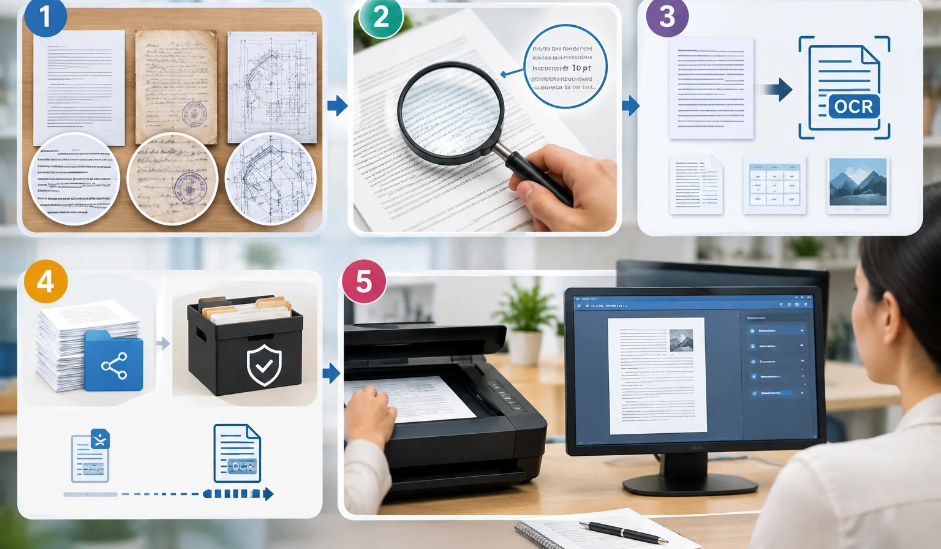
Work through these steps to settle on a setting.
Step 1: Look at the Content –Plain text pages need much less detail than faded originals, stamped pages, or fine drawings.
Step 2: Check the Smallest Print – Small text under 10-point can blur at 300 DPI, so test 400 DPI first.
Step 3: Consider OCR – 300 DPI is sufficient for readable printed text, whereas inferior quality documents may require more.
Step 4: Think About Use – Sharing on a day-to-day basis requires lighter files, but archiving and reprinting require more detail.
Step 5: Run a Test Scan – Before processing the batch, test the sample on the monitor and keep a record of the settings used.
Suggested DPI by Document Type
These suggestions are general guidelines, so test a few sample pages from your own records and adjust settings if text looks unclear.
| Document Type | Suggested DPI | Why |
| Letters, invoices, and contracts | 300 | Clear text and reliable OCR with manageable files |
| Small print or dense forms | 400 | Keeps tiny characters legible |
| Faded, stamped, or low contrast pages | 400 to 600 | Captures extra detail for readability |
| Archival or high detail records | 600 | Preserves fine detail for long-term use |
A higher setting cannot restore contrast that a faded original has lost, so judge the page before raising the number. If one project mixes page types, group them by type so each batch can use its own setting.
300 DPI vs 400 DPI: When to Go Higher
For clean printed text at normal sizes, 300 DPI is usually enough, and moving up to 400 DPI adds file size without a clear gain. The higher setting helps when characters are small, such as fine print, footnotes, or dense forms. If a sample scanned at 300 DPI reads clearly on screen and passes OCR, stay there.
Going to 600 DPI makes files several times larger, which slows sharing and uses more storage. Reserve it for records where fine detail truly matters.
How Color Mode Affects File Size
Resolution is only one setting. Color mode changes file size too, so the two should be chosen together:
- Black and white: the smallest files, suited to clean text.
- Grayscale: keeps shading in faded or stamped pages.
- Color: the largest files, needed when color carries meaning, such as highlighted notes or color-coded forms.
Choosing black and white for text-only pages can shrink files noticeably, but check that stamps and signatures remain clear.
Setting Mistakes That Waste Time and Storage
Even the best DPI for scanning documents will not help if the setup around it is careless. Avoid these habits before a large project begins:
- Defaulting to the highest setting for every page, just to be safe.
- Changing resolution partway through a batch, so similar files look and behave differently.
- Judging quality by file size alone, without opening a sample.
- Locking in settings before the end use of the files is clear.
Conclusion
The right document scanning DPI comes down to the document in your hands and what you plan to do with it. For most business records, 300 DPI delivers clear text and dependable OCR, while 400 or 600 DPI is worth the extra file size only for small print, faded pages, or archival records. Settling on a setting before you start keeps your files consistent and your storage under control.
If you are unsure which setting suits your records, talk it through with your provider before scanning begins. Access Scanning can help you choose a resolution that fits your documents and how you plan to use them.
FAQs
Is 200 DPI the best DPI for scanning documents?
For basic reading copies of clean printed pages, 200 DPI can be readable. For business records and OCR, 300 DPI is the safer choice because small characters stay sharper.
What is the difference between DPI and PPI?
DPI describes printed dots, while PPI counts pixels in a digital image. Scanner software often uses the two terms interchangeably, and for choosing a scan setting, they work the same way.
Can I increase DPI after scanning?
Raising DPI afterward does not add detail that was never captured. The file may look larger, but it will not be sharper, so choose the right setting before scanning begins.
Does DPI matter for photos and large drawings?
Yes. Photos and large format drawings often need different settings than text pages. Tell your provider what the originals are, since the best setting depends on size, detail, and intended use.
How can I check whether a scan is good enough?
Open the file at normal zoom and read the smallest text. Search for a few words and look for blurred edges. If anything is unclear, rescan a sample at a higher setting.
Get Settings Advice Before You Scan
Contact our team with your page count and intended use, and receive settings advice along with a quote for your project. Clear guidance helps avoid rescans and oversized files.